How to frame App Store screenshots on Mac
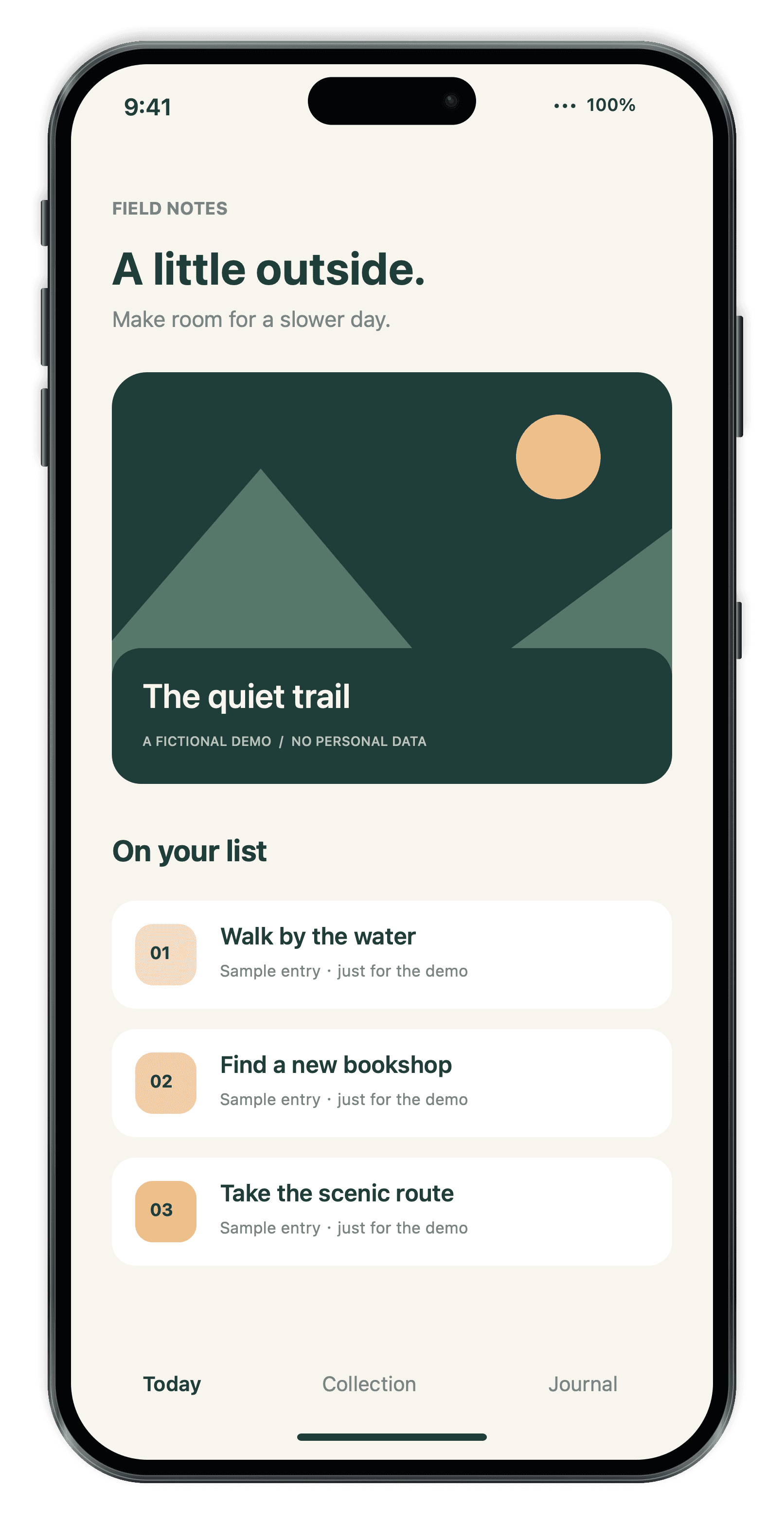
Use Fralo to turn a folder of app screenshots into a consistent set of device mockups. Set the frame and layout once, preview the batch, then export each screenshot as its own image.
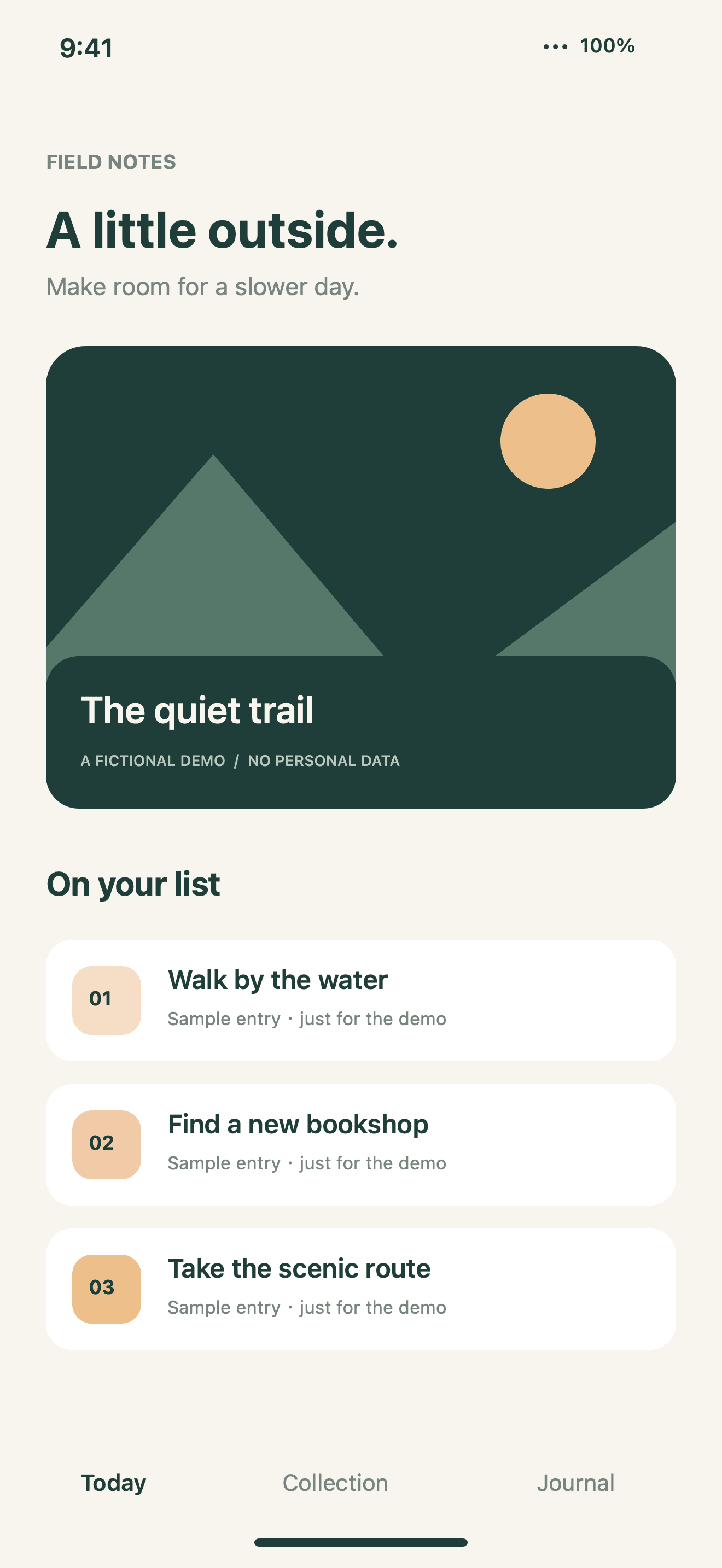
Capture the screens you want to show
Use your actual app screens and capture a portrait or landscape set for each device family. Put the key feature first and keep the app interface readable at thumbnail size.
Apply one frame to the batch
Drag the screenshots or their folder into Fralo. Choose a phone or tablet frame and set the canvas, background, and position. Click through the batch in the live preview before exporting.
Export for the final use
Choose a canvas with a background for finished images, or transparent PNG for a mockup you’ll place in another design. Fralo saves the exports to a new folder and keeps the originals intact.
Before uploading to App Store Connect
Check every exported image against Apple’s accepted dimensions for the target device and make sure it shows your app in use. Use the original screenshot or finish the layout in an editor if your export needs a different size.